• Payroll Year End 2026
    See our Webinars

KB Category: Sage 50 Accounts

Sage 50 Accounts

Remove a company from Sage Drive – v21 only

Remove a company from Sage Drive – v21 only

On occasions, it may be necessary to remove your company from Sage Drive and start again. For example, if you forget the encryption password you set up, or you need to change the data owner. If you aren’t comfortable with deleting files you may wish to seek the assistance of your IT Support.

You must follow these steps on the computer at the main site where your data is held.

Check the data director
1. On the menu bar, click Help then click About.
2. Check the Data Directory.


Delete company from Sage Drive Management Centre
1. Close Sage Accounts and visit https://drive.sage.com/mc/signon
2. Log into the Sage Drive Management Centre using your Sage ID.
3. Select the By company view and click the company you want to delete.
4. Click the Delete company icon

This doesn’t delete the data on your server, just the copy of the data held in Sage Drive.

5. To delete other companies in the list, repeat steps 3 and 4.

If you’ve shared multiple companies using Sage Drive, you must remove all companies.

6. Sign out  then close the Internet browser.


Remove all Sage Drive data

These steps remove all Sage Drive data from your computer. If you’ve more than one company, and want to remove and reconnect single companies, please continue to the Remove Sage Drive for a single company section.

If you’re using a network version of Sage Accounts, all other users must log out of the data.

1. Press the Windows Key  + R on your keyboard.

2. Enter Services.msc and click OK.

3. Right-click the Sage 50 Accounts Service then click Properties.

4. Make a note of the Path to executable.

5. Right-click each of the following services and click Stop.

  • Sage 50 Accounts Control
  • Sage 50 Accounts Service
  • Sage 50 Accounts Remote Application – if you’ve installed Service Pack 5, this service no longer exists.

6. Press the Windows Key  +E on your keyboard.

7. Browse to the folder that contains the Path to executable you noted in step 4.

For example, if the Path to executable was C:\Program Files\Sage\Accounts\sg50svc.exe browse to the folder C:\Program Files\Sage\Accounts

1. Right-click each of the following files, click Delete, then click Yes.

  • Sg50Svc.sqlite3
  • Sg50Svc.sqlite3-Shm
  • Sg50Svc.sqlite3-wal

If you can’t find these files, contact your IT support for further help.

1. Press the Windows Key  +E on your keyboard.

2. Browse to the following location:

  • 32 bit – C:\Windows\System32\config\systemprofile\AppData\Local\Sage\SSB\Accounts\Collaborate
  • 64 bit – C:\Windows\Syswow64\config\systemprofile\AppData\Local\Sage\SSB\Accounts\Collaborate

3. Delete the contents of the Collaborate folder.

4. Press the Windows Key  + E on your keyboard.

5. Browse to the following location:

  • C:\ProgramData\Sage\Accounts\SageDrive

If ProgramData folder doesn’t show, you may need to Show hidden files and folders in Windows.

1. Delete the contents of the SageDrive folder.

2. Press the Windows Key  +E on your keyboard.

3. Enter Services.msc and click OK.

4. Right-click each of the following services and click Start.

  • Sage 50 Accounts Control
  • Sage 50 Accounts Service
  • Sage 50 Accounts Remote Application – if you’ve installed Service Pack 5, this service no longer exists.

If required, you can now upload your data to Sage Drive again.

Remove Sage Drive for a single company

If you’re only having the problem with one company, you should delete the company from the Sage Drive Management Centre, then open Sage Accounts and select Disconnect.

Upload data to Sage Drive again, if required


What is Making Tax Digital for VAT? (MTD)

What is Making Tax Digital for VAT?

As part of their Making Tax Digital (MTD) plans to modernise the tax system, the Government is changing the way VAT registered businesses create and submit VAT Returns.

What does it mean for businesses?

The changes being introduced in April 2019 under Making Tax Digital for VAT are compulsory for businesses that:

• Are VAT registered, and
• Have a taxable turnover above the VAT registration threshold, currently £85,000.

Even if you already submit VAT Returns online from your Sage 50 Accounts, or through the HMRC online services, you will still need to sign up with HMRC and start submitting under MTD.
If your business is affected, we recommend you start preparing soon to ensure a smooth switch to Making Tax Digital for VAT.

Does Making Tax Digital for VAT affect my business?

HMRC has stated that there will be exemptions for some organisations, including:

  • Where religious beliefs are incompatible with the regulation requirements.
  • Where it isn’t reasonably practicable to use the required digital tools, for example, remoteness of location.
  • Businesses subject to an insolvency procedure.

If your business is affected, the new VAT rules apply from 1 April 2019, and you must:

  • Ensure you have MTD for VAT compliant software.
  • Start maintaining digital business records for the purposes of VAT.
  • Sign up with HMRC for MTD for VAT.
  • Start submitting your VAT Return through your compliant software.

If you think you may be exempt from MTD, you should contact the HMRC VAT Helpline to make alternative arrangements.


What do I need to do?

Don’t worry, if you currently subscribe to Sage 50cloud Accounts and have v24.2 installed, this is MTD ready.

If you’re still using Sage 50 Accounts, it’s quick and simple to switch your contract to Sage 50cloud Accounts, Contact Gavin on 051-395900 for more details.

HMRC will soon be running an open pilot for MTD for VAT. Once you have your MTD compliant software, we recommend you sign up early. This gives you time to make any required changes to your VAT processes and get used to the new system before it’s mandatory.

Is my Sage 50 Accounts compliant with Making Tax Digital?

Making Tax Digital for VAT becomes mandatory in April 2019. A key change is that from April 2019 HMRC will no longer provide online tools for digital submission of VAT Returns. Instead, submissions must be made through commercial software.
If you currently subscribe to Sage 50cloud Accounts and you have v24.2 installed, this is MTD ready.


Check if you have Sage 50cloud Accounts

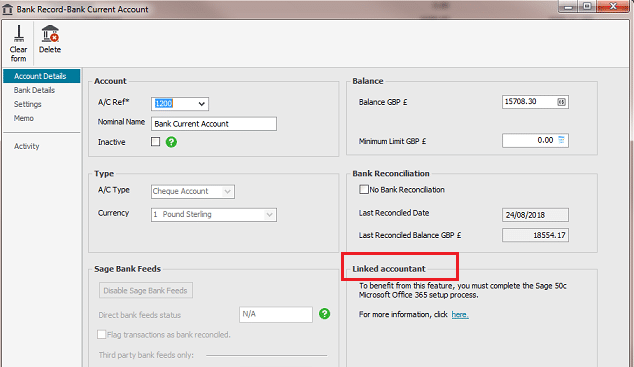
If you’re not sure which software you currently have, to quickly find out if you’re using Sage 50cloud Accounts, check if you can see the Linked accountant option in bank records.
1. Open Sage 50 Accounts.
2. On the menu bar click File, click Open then click Open Demo Data.
3. In Logon name enter manager then click OK.
4. On the navigation bar click Bank accounts.
5. Double-click the default bank account, 1200 – Bank Current Account.
6. In the Account Details tab, check if you can see a Linked accountant section as shown below.

Sage 50 VAT Returns


Is making Tax Digital Switched on ?

To check if you Accounts has MTD switched on (once you are compatible) you can do this by going into Help – About on your software.  Under the heading Features Enabled and Making Tax Digital will say Yes or No.

If its No its not switched and you can switch it on as follows:

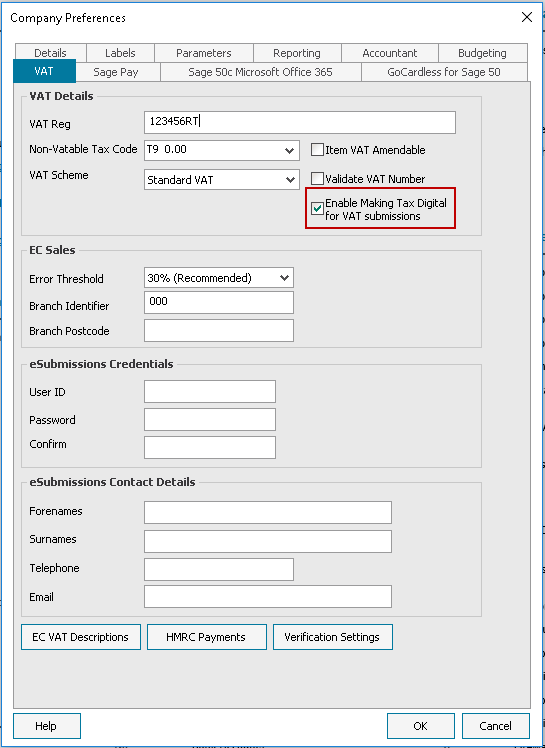
  1. Click on Settings – Company/Preferences
  2. Click on the VAT Tab
  3. Tick the box Enable Making Tax Digital for VAT submissions

Ensure you have the correct information filled in, in the VAT tab.- For more information Click here.

4. Once you go back into Help and About the feature for MTD should now say Yes


Click here for the next steps on Making Tax Digital (MTD)


Find out More

You can find out more from MTD resources

You can find out more about the new rules in HMRC VAT Notice 700/22: Making Tax Digital for VAT.


How to map a network drive

How to map a network drive

Here we explain how to map a network drive. Before you can do this, the folder to which you want to map a drive must first be shared.

Check the folder share name

If the folder is already shared, make a note of of the share name.

Tip: If you’re unsure about this and the drive is already mapped on another PC, you can identify the computer name and share name from the other PC in My Computer. In the following screenshot, the S: drive is mapped to the accounts folder on a computer called sage002337. The UNC path is therefore \\sage002337\accounts 

Alternatively, you can use the net use command to see the full UNC paths allocated to each network drive on the PC.

1. Start > Run > in the Open box, type cmd > OK.

Tip: To open the Run window in Windows Vista or Windows 7, hold down the Windows key + R on your keyboard.

2. At the prompt, type net use > press Enter.

The list of mapped drives and their corresponding UNC paths appear.


3. To return to the Windows desktop, type exit > press Enter.


Windows 10


To map a network drive:

1. Right-click Start > File Explorer > select This PC.

2. Computer tab > Map network drive button > Map network drive.

3. From the Drive drop-down list, select the required drive letter.

4. In the Folder box, enter the UNC path, for example \\sage002337\accounts or click Browse and browse to the shared folder.

Tip: If the drive has been previously mapped on this PC, you can select the required UNC path from the drop-down list.


5. Select the Reconnect at logon check box > Finish.


Windows 8

To map a network drive:

1. Start > Windows Explorer > Computer > Map network drive.

2. From the Drive drop-down list, select the required drive letter.

3. In the Folder box, enter the UNC path, for example \\sage002337\accounts or click Browse and browse to the shared folder.

Tip: If the drive has been previously mapped on this PC, you can select the required UNC path from the drop-down list.

4. Select the Reconnect at logon check box > Finish.


Windows 7

To map a network drive:

1. Start > Computer > press the left Alt key > Tools > Map Network Drive.

2. From the Drive drop-down list, select the required drive letter.

3. In the Folder box, enter the UNC path, for example \\sage002337\accounts or click Browse and browse to the shared folder.

Tip: If the drive has been previously mapped on this PC, you can select the required UNC path from the drop-down list.

4. Select the Reconnect at logon check box > Finish.


Windows Vista

To map a network drive:

1. Start > Computer > press the left Alt key > Tools > Map Network Drive.

2. From the Drive drop-down list, select the required drive letter.

3. In the Folder box, enter the UNC path, for example \\sage002337\accounts or click Browse and browse to the shared folder.

Tip: If the drive has been previously mapped on this PC, you can select the required UNC path from the drop-down list.


4. Select the Reconnect at logon check box > Finish.


Windows XP

To map a network drive:

1. Open My Computer > Tools > Map Network Drive.

2. From the drop-down list, select the required drive letter.

3. In the Folder box, enter the UNC path, for example \\sage002337\accounts or click Browse and browse to the shared folder.

Tip: If the drive has been previously mapped on this PC, you can select the required UNC path from the drop-down list.

4. Select the Reconnect at logon check box > Finish.

Windows 2000

To map a network drive:

1. Open My Computer > Tools > Map Network Drive.

2. From the drop-down list, select the required drive letter.

3. In the Folder box, enter the UNC path, for example \\sage002337\accounts or click Browse and browse to the shared folder.

Tip: If the drive has been previously mapped on this PC, you can select the required UNC path from the drop-down list.


4. Select the Reconnect at logon check box > Finish.


Connecting to your Sage Accounts data using a UNC path

Connecting to your Sage Accounts data using a UNC path

A UNC path is the path to a folder or file on a network. A UNC path contains the server name in the path. For example, \\server01\sage\accounts.


Sage Accounts supports the use of UNC paths to connect client PCs to the data on the server PC. You can either use a UNC path or a mapped network drive.

To change your data path from a mapped network drive to a UNC path, you must change the path in the Company file.


1. Browse to the following directory:

Sage Accounts v24 C:\ProgramData\Sage\Accounts\2018
Sage Accounts v23 C:\ProgramData\Sage\Accounts\2017
Sage Accounts v22 C:\ProgramData\Sage\Accounts\2016
Sage Accounts v21 C:\ProgramData\Sage\Accounts\2015
Sage Accounts 2014 (v20) Windows 8, Windows 7 or Windows Vista – C:\ProgramData\Sage\Accounts\2014

Windows XP – C:\Documents and Settings\All Users\Application Data\Sage\Accounts\2014


2. Double-click the Company file and click Open With.

3. Choose Notepad, then click OK.

4. Select the mapped drive path and press Delete.

5. Type in the UNC path.

To find the UNC path for a mapped drive, press the Windows key + R > enter cmd > OK > type net use > Enter. A list of your mapped drives appears, together with the relevant UNC paths.

6. On the menu bar, click File then click Save.

7. Click File, then click Exit.

You can find further information about mapping a network drive from our support guide. Read more >


How to set up a one month accrual for over the year end


How to set up a one month accrual for over the year end


To process a one month accrual over the year end, you need to manually post an accrual in the last month of your financial year, then reverse it in month one of the new financial year.

Note: In the following example, you have estimated that approximately £/€100 of an expected telephone bill relates to the current year.


To post a year end accrual

1. Nominal codes > Journal entry.

Sage Accounts 2013 (v19) and 2014 (v20) – Company > Tasks pane > Journal Entry.

Sage Accounts 2012 (v18) and below – click New Journal instead of Journal Entry.

2. Enter a reference and date for the journal, then enter the relevant information to record the accrual into the current year’s accounts, for example:

N/C Name Dept Details T/C Debit Credit
7502 Telephone Department Accrual Adjustment T9 100.00 0.00
2109 Accruals Department Accrual Adjustment T9 0.00 100.00


3. Note: The date for this journal must be in the current financial year.

4. Save > Close.

You have now increased the balance on the Telephone nominal code, and on the Accrual nominal code in the Current Liability section of the balance sheet report by £/€100. After running the Year End option you should reverse this transaction, this moves the value back from the balance sheet to the overhead nominal code.


To reverse the year end accrual

1. Nominal codes > Journal entry.

Sage Accounts 2013 (v19) and 2014 (v20) – Company > Tasks pane > Journal Entry.

Sage Accounts 2012 (v18) and below – click New Journal instead of Journal Entry.

2. Enter a reference and date for the journal, then enter the relevant information to record the accrual into the new year’s accounts, for example:

N/C Name Dept Details T/C Debit Credit
2109 Accruals Department Accrual Adjustment T9 100.00 0.00
7502 Telephone Department Accrual Adjustment T9 0.00 100.00


3. Note: The date for this journal must be in the new financial year.

4. Save > Close.

You have now moved the value of the accrual from the balance sheet nominal code back to the relevant profit and loss nominal code. This appears as a credit balance on the overhead nominal code and reduces the new year’s balance on the overhead by the value relating to the prior year.

When the invoice is eventually received, post it in the usual way. This leaves the correct value for the new financial year on the overhead nominal code.


Sage Report Designer features – Quick guide

Sage Report Designer features – Quick guide

Sage Report Designer contains many features designed to help you amend and design reports within Sage Accounts.

This article provides quick steps for the most commonly used features, plus links to the more detailed articles available in Ask Sage.

Sage Report Designer desktop

The Sage Report Designer desktop displays the Designer view of the report, showing the sections, text and variables which make up the report. To the left and right of the report design are various panes which provide much of the functionality within Sage Report Designer.

If any of the panes mentioned in this article are not visible, open the View menu and select the required pane. If the pane doesn’t appear, you can reset the Report Designer view to its default.

The following panes are available:
  • Dynamic Help pane – This pane simplifies the process for common report changes by guiding you through the steps required. You can use it to add new objects such as text or images to your report, and also to amend existing objects. For information about how to use Dynamic Help, please refer to article 29329.


  • Variables pane – This displays the tables and variables that are available to add to the document, and any saved snippets. To add a variable to your document, simply click and drag it onto the design area.
  • File Explorer pane – This shows your report folders and the documents they contain. You can open a document in Sage Report Designer by double-clicking the report title in the File Explorer pane.


  • Properties pane – This shows the object properties and conditional formatting options available for the object currently selected in the design area or Report Explorer pane. If no object is selected, it show the main document properties.


  • Report Explorer pane – This shows the structure of the document, with the name of the report, sections on the report and the variables and other objects each section contains.

For information about the additional menu options in Sage Report Designer, please refer to article 27235.

Features

To add bar codes

This feature is available in Sage 50 Accounts 2010 and above and Sage Instant Accounts v16 and above.

  1. Toolbox menu > Add Barcode > click on the design and draw to required size then release.
  2. Expression Editor window > Fields pane > browse to and double-click the required variable to display the bar codes, for example, STOCK.BARCODE > OK.

To return to the mouse pointer, from the Toolbox menu choose Pointer.

For further information about adding bar codes, please refer to article 24964.

To add boxes

  • Toolbox menu > Draw Box > click on the design and draw to required size then release.

To return to the mouse pointer, from the Toolbox menu choose Pointer.

For further information about adding boxes, please refer to article 12639.

To add conditional properties

  • Select the object > Properties pane > Conditional Formatting > click the finder button > enter the conditional formatting as required > OK.

For further information about Conditional Formatting, please refer to article 12679.

To add criteria

  • Report menu > Criteria > New Criteria.

For further information about setting criteria, please refer to article 25638.

To add email settings

  • Report menu > Email Settings > enter the required email settings > OK.

For further information about email settings in Sage Accounts 2013 and above, please refer to article 29207. For further information about email settings in Sage Accounts 2012 and below, please refer to article 12659.

To add expressions

  • Toolbox menu > Add Expression > click on the design > enter the required expression > OK.

To return to the mouse pointer, from the Toolbox menu choose Pointer.

For further information about creating user defined calculations, please refer to article 12650.

To add filters

  • Report menu > Filters > enter the required filter > OK.

For further information about filters, please refer to article 12648.

To add groups

  • Sections menu > Add Section > Group Header And Footer > enter the variable for the required group > OK.

For further information about adding groups, please refer to article 12654.

To add images

Tip: A linked image links back to the original image file, so any subsequent changes to the original file are reflected in your document. An embedded image remains the same on your document, even if the original file is later amended.

  • Toolbox menu > Add Image / Logo > click on the design > select Browse my PC or network for an image > select or clear the Store the image in the report check box as required > OK > browse to and select the image file > Open.

To return to the mouse pointer, from the Toolbox menu choose Pointer.

For further information about adding images, please refer to article 12676.

To add lines

  • Toolbox menu > Draw Line > click on the design and draw to required size then release.

To return to the mouse pointer, from the Toolbox menu choose Pointer.

For further information about adding lines, please refer to article 12639.

To add page headers and footers

  • Sections menu > Add Section > Page Header And Footer.

For further information about adding sections, please refer to article 12661.

To add sorts

  • Report menu > Sorts > Add > enter the required sort > OK > OK.

For further information about sorts, please refer to article 12641.

To add sub reports

This feature is available in Sage Accounts 2011 and above.

  • Toolbox menu > Add Subreport > click on the design > complete the report wizard.

To return to the mouse pointer, from the Toolbox menu choose Pointer.

For further information about adding a sub report, please refer to article 26016.

To add text

  • Toolbox menu > Add Text > click on the design > enter the required text.

To return to the mouse pointer, from the Toolbox menu choose Pointer.

For further information about adding text, please refer to article 12638.

To add variables

  • Variables pane > expand the table > drag and drop the required variables onto the design.

For further information about adding variables, please refer to article 12638.

To change group or section properties, including section filters

  • Report Explorer pane > select the required section > Properties pane > click the relevant option.Tip: The properties are different for headers and footers. Most group properties such as sorts are held in the header properties.

For further information about changing section properties, please refer to article 12662.

To change page margins

  • File menu > Page Setup.

For further information about the page setup window, please refer to article 12585.

To change paper size and orientation

  • File menu > Page Setup.

For further information about the page setup window, please refer to article 12585.

To change print adjustments

  • Tools menu > Options > Printer Offsets tab.

For further information about Printer Offsets, please refer to article 12586.

To change print setup

  • File menu > Page Setup > Printer > Properties.

For further information about the page setup options, please refer to article 12585.

To change printer

  • File menu > Page Setup > Printer > Name > choose the new default printer.

For further information about the page setup options, please refer to article 12585.

To change properties of an object

  • Select the object > Properties pane > click the required option.

For further information about object properties, please refer to the following articles:
12646 Report Designer – How to amend date or time object properties
12658 Report Designer – Numeric Formatting
12584 Report Designer – How to create and use styles

To move an object

  • Click and drag the object, or select the object and use the arrow keys on the keyboard.

For further information about moving objects, please refer to article 12647.

To rename a report

  • Report menu > Report Properties > enter a new name and description > OK.

For further information about renaming a report, please refer to article 16965.

To save

  • File menu > Save.

To save as

  • File menu > Save As.


Download and install the Report Designer v4.0.140 update

Download and install the Report Designer v4.0.140 update

The Report Designer v4.0.140 update is available for Sage 50 Accounts v23.2 and v24.0, and Sage 50 Payroll v23.0.101 and above.

This update improves the functionality for sending Sage reports to Excel. Once you install the update, the Report Browser window contains the following three options for sending reports to Excel:

  • Export – Choose from a list of file types and save the report to a specified folder.
  • Report to Excel – Exports the report to Excel in the same format as the report preview.
  • Data to Excel – Exports the report data to Excel, placing the information in columns ready for further analysis.


Download it


1. On the computer that has Sage 50 Accounts or Sage 50 Payroll installed, click the download link below.

Download Report Designer V4 update

Depending on your Internet browser, the file saves to your Downloads folder or you’re prompted to save the file.

2. If prompted to save the file, browse to where you want to save it, then click Save.


Install it


1.Browse to your Downloads folder, or the folder where you saved the download.

2. Double-click the downloaded file, Sage.ReportDesigner.Update.4.0.140.msi


Error: Server Busy – This action cannot be completed… Switch to… Retry

Error: Server Busy – This action cannot be completed… Switch to… Retry

When processing in Sage Micropay, you may receive the following message:

‘Server Busy – This action cannot be completed because the other program is busy. Choose ‘Switch to’ to activate the busy program and correct the problem.’

The following options are offered: Switch to, Retry or Cancel.

This message can appear for a variety of reasons, such as anti virus software and permissions.

If this message appears when you’re viewing the year end guide within Sage Micropay, please refer to article 34240 .


To resolve this, please try the following:


Step 1 – Install any Windows updates, restart your computer and log on as administrator

Ensure that you’ve checked for, and installed, any required Windows updates.

1. Close all software, including Sage Micropay.

2. Windows key + R.

3. Type wuapp then click OK.

4. Click Check online for updates from Microsoft Update.

Follow the instructions to download and install any available updates. For further assistance with this, please contact your local IT support

5. Restart your computer and log on as a Windows administrator.

If you’re unsure about how to log on to your computer as an administrator, please contact your local IT support.

6. Repeat steps 2 to 5, until there are no further updates to install.


Step 2 – Configure your anti virus software to exclude Sage Micropay files

To protect against the message occurring in the future, you should configure your anti virus software to exclude Sage files.

For more information about which files to exclude from the anti virus checks, please refer to article 35265.


Step 3 – Run Sage Micropay as an administrator

Windows 10

1. From the Windows desktop, right-click the relevant tax year option of Sage Micropay then left-click Properties.

2. Click the Compatibility

2. Select the Run this program as administrator check box.

4. Click Apply then OK.

If you’re not logged on to the computer as an administrator, the User Account Control window prompts you to enter the user name and password of an administrator. Enter the user name and password then click OK.

Windows 8

1. From the Windows desktop, right-click the relevant tax year option of Sage Micropay then left-click Properties.

2. Click the Compatibility

3. Select the Run this program as administrator check box.

4. Click Apply then OK.

If you’re not logged on to the computer as an administrator, the User Account Control window prompts you to enter the user name and password of an administrator. Enter the user name and password then click OK.

Windows 7

1. From the Windows desktop, right-click the relevant tax year option of Sage Micropay then left-click Properties.

2. Click the Shortcut tab, then click Advanced.

3. Select the Run as administrator check box.

4. Click OK then OK and Yes.

If you’re not logged on to the computer as an administrator, the User Account Control window prompts you to enter the user name and password of an administrator. Enter the user name and password then click OK.

Windows Vista

1. From the Windows desktop, right-click the relevant tax year option of Sage Micropay then left-click Properties.

2. Click the Shortcut tab, then click Advanced.

3. Select the Run as administrator check box.

4. Click OK then OK and Continue.

If you’re not logged on to the computer as an administrator, the User Account Control window prompts you to enter the user name and password of an administrator. Enter the user name and password then click OK.


Step 4 – Download and install the latest update of Sage Micropay

You can download the latest version of Sage Micropay from the downloads area of our website.

After downloading, to install it ensure you’ve closed Micropay and run the file.

Before you install this new version of Micropay, you must check that your computer meets the recommended system requirements and that you’re logged on to your computer as an administrator. If you don’t have administrator access, your software may not install correctly.


Pimbrook Software
Privacy Overview

This website uses cookies so that we can provide you with the best user experience possible. Cookie information is stored in your browser and performs functions such as recognising you when you return to our website and helping our team to understand which sections of the website you find most interesting and useful.