• Payroll Year End 2026
    See our Webinars

KB Category: Sage 50 Accounts

Sage 50 Accounts

Aged Debtors Report and Debtors Control Account do not match (Sage Accounts)

Reasons this will happen:


  1. A journal has been posted to the Debtors Control Account and this will not wash out so it has to be reversed or highlighted to prove the difference
  2. A Receipt has been allocated to an invoice with a future date.


To find out if a Journal has been entered, go to Nominal Reports/Day Books and select Day Books: Nominal Ledger.  When the Criteria box appears, put in the dates and select 1100 Debtors Control Account. If the report is blank then proceed to Future Allocations Query.


To find out Future Allocations, go to Customer Reports/Aged Debt Rec Reports, if you do not have this selection of reports contact Support.

Run the various reports and it will highlight any transactions that were allocated after the month end/year end date.  You can fix the dates via Transactions by clicking Unallocate and then allocate again with the correct date.

Sage 50 Reports – ‘Generic COM Error’ or ‘Failed to Output’

If you’re using Microsoft Outlook, when you try to email documents from Sage Accounts or Sage 50 Payroll one of the following message may appear. These can be due to environmental settings or report specific issues.

‘Unable to send all emails.’

‘ExtendedErrorCode.COMError: “Generic COM Error’

‘Failed to output to email’

Not using Microsoft Outlook? Check your SMTP settings and check that your webmail password is correct. For information about SMTP settings in Sage Accounts, refer to article 12659.


Check you use a compatible version of Microsoft Outlook

1. Check your version of Outlook is compatible with your Sage software and you’re using the desktop version and not cloud based.

If you don’t have a compatible version of Outlook, to email from your Sage software use SMTP settings instead.

2. Install all updates for the version of Outlook you’re using. Read more >>

3. Try emailing your document again.


Check Run as administrator settings are the same for Outlook and your Sage software

1. Close all software, right-click the Outlook shortcut then click Properties.

2. Click the Compatibility tab, check if the Run this program as an administrator check box is selected or clear, click OK.

3. Right-click the Sage software shortcut then click Properties.

4. Click the Compatibility tab, set Run this program as an administrator to be the same as Outlook, click OK.

5. Try emailing your document again.


Check Microsoft Outlook opens correctly

1. Close and reopen Microsoft Outlook and check that it opens correctly.

2. Right-click any file on the computer, for example, a Word document, click Send To then click Mail Recipient.

If nothing happens or an error appears, proceed to the following section.


Set Outlook as the default mail provider

1. Press the Windows key + R, type control /name Microsoft.DefaultPrograms then click OK.

2. Click Set your default programs, click Outlook (desktop), click Set this program as default then click OK.

3. Right-click any file on the computer, for example, a Word document, click Send To then click Mail Recipient.

If a new Outlook email window appears, Outlook is now set as the default mail provider and you should try emailing your document again. If it doesn’t work, proceed to the following section.

If nothing happens or an error message appears, Outlook is not correctly configured as the default mail provider and you should contact your local IT support to carry out a repair install of Microsoft Outlook


Sage 50 (v21 or above) – To stop and restart Data Services

Data service was introduced in Sage Accounts v21 or above with

When speaking to Sage Technical Support, there may be occasions where you need to make manual changes to your Sage Accounts data files.

To do this, you must ensure everyone’s out of Sage Accounts and depending on your version, should stop the Sage Data Service, if in use.

Before you can make any changes to your data files, to protect the integrity of your data you must stop the Sage Accounts Data Service on the computer where the data is held, to prevent anyone accessing the data.

1. Log all users out of Sage Accounts. To see who’s currently logged in: View > User List.

2. Stop the Sage Accounts Data Service on the computer where your data is held.

To stop the data service

You can do this using the Data Service Manager:

1. On the computer where your data is held > Start menu > All programs > Sage Accounts > Data Service Manager.

2. Tools > Data Service Manager > OK.

Tip: You can also access the Data Service Manager with Sage Accounts, Tools > Data Service Manager > OK > if required, create a backup > close Sage Accounts.

3. Check that the correct Server name appears in the Server box, you can amend this if required > if you’re unsure of your server name, contact your IT administrator.

4.  Click Connect > make sure all users have logged out of Sage Accounts. A list of users who are still logged in is shown at the bottom of the window.

5. Click Stop Service.

Note: You can also start and stop the service like any Windows service using your operating system. To do this, press the Windows Key + R on your keyboard > enter Services.msc > right-click Sage 50 Accounts Service > Start, Stop or Restart as required.

6. Make your required changes.

7. Start the Sage Accounts Data Service on the computer where your data is held.


To start the data service

You can do this using the Data Service Manager:

1. On the computer where your data is held > Start menu > All programs > Sage Accounts > Data Service Manager.

2. Tools > Data Service Manager > OK.

Tip: You can also access the Data Service Manager with Sage Accounts, Tools > Data Service Manager > OK > if required, create a backup > close Sage Accounts.

3. Check that the correct Server name appears in the Server box, you can amend this if required > if you’re unsure of your server name, contact your IT administrator.

4. Click Connect > Start Service.

Note: You can also start and stop the service like any Windows service using your operating system. To do this, press the Windows Key + R on your keyboard > enter Services.msc > right-click Sage 50 Accounts Service > Start, Stop or Restart as required.


Sage 50 – Check Data

We know how important the integrity of your Sage Accounts data is to you, and any loss of data can be very costly in terms of time and money. You can use the Check Data option to check the validity of your data files. You should run it regularly, especially before taking a backup or after restoring your data.

Check your data

If you’ve a multi user licence, all other users must log out before you can access this option.

1. On the menu bar click File then click Maintenance and click Check Data.

2. If there are no problems, a message appears informing you of this click OK.

If there are problems with your data, the File Maintenance Problems Report appears. To find out how to fix any errors, warnings and comments,

3. Click Close then click Close.

Check Data errors, warnings and comments

The Check Data option examines the data files to detect errors, and summarises the results on the File Maintenance Problems Report window. It groups any issues into the following categories:

Errors

Errors indicate data problems caused as a result of corruption. If you’ve errors on your data, print the list of errors, then ring Pimbrook on 051-395900 to discuss the errors

Warnings

Warnings indicate problems that you should attend to promptly. If you have warnings on your data, print the list of warnings, then ring Pimbrook to discuss the errors

Comments

Comments are minor issues and don’t necessarily require immediate attention. However, they do indicate small inconsistencies in the data. For example, a transaction dated beyond the current processing date


Change a password in Sage Accounts

In Sage Accounts you can follow the steps below to change a password while logged in as that user, or while logged in as manager.


While logged in as the user
  1. On the menu bar click Settings, then click Change Password.
  2. Enter the new password into the New Password and Confirm Password
  3. If prompted, enter a security question and answer to help with future password resets.
  4. Click OK.


While logged in as manager
  1. On the menu bar click Settings, then click Access Rights.
  2. Click the username then click Edit.
  3. Enter the new password then click OK.

Sage 50 – Back up your data

We recommend taking regular backups of your data. If anything happens to your computer, you can simply restore your most recent backup and continue processing where you left off.

You should also back up before and after accounting processes such as creating a VAT Return or running a year end.

We also recommend you take at least one backup to an external device such as an external hard drive or USB. Alternatively, you can point it towards a folder that backs up to your cloud, for example Drop Box, One Drive, Google Drive etc.

If you’ve custom reports or layouts, we recommend you take at least one backup of these only and don’t include the data files. That way if anything happens to your reports or layouts, you can restore this backup without overwriting your data.

Back up your data


1. On the menu bar, click File then click Back up.

2. To check your data, click


Yes then click OK.

3. Click Close then Close again.


4. Enter a file name for your backup, then click Browse.

5. Browse to where you want to save it and click OK.

6. Select the type of files you want to back up.

Sage Accounts v23 and below – Click Advanced options and select the type of files you want to back up.

7. Click OK then OK again.

GDPR Reports in Sage 50 Accounts (V24.2)

Customer reports – Customer Contacts


This report helps you to search your customer records for a name. This report is useful if someone is exercising their right to access their personal data or to erasure, sometimes called the right to be forgotten.


  1. To run the report, click Customers and then click Reports. Click GDPR then double-click Customer Contacts.
  2. In the Customer Ref fields, you can enter a range of customer records if required.
  3. In the Contact field, enter the contact name you want to search for.
  4. You can use the Show Active/Inactive drop-down to choose whether you want to search all customer records, just active records or just inactive records.
  5. Click OK


The report locates any instances of the name entered in the registered, contact or delivery addresses of your customer records. Once you’ve identified the customer records you need to edit, you should manually check for any other references that need to be edited, such as email addresses or entries in memo fields.

Dormant Customers


This report helps you to identify customers that you have not traded with within a date range. You can use this report to identify accounts that can now be deleted.


  1. To run the report, click Customers and then click Reports. Click GDPR then double-click Dormant Customers.
  2. Using the drop-down options, choose the date range you’re interested in.
  3. Click OK.

This report lists the account reference and contact details for customers with no transactions in the date range you specified. The last transaction date and current balance are also shown.


Supplier reports – Supplier Contacts


This report helps you to search your supplier records for a name. This report is useful if someone is exercising their right to access their personal data or to erasure, sometimes called the right to be forgotten.

  1. To run the report, click Suppliers and then click Reports. Click GDPR then double-click Customer Contacts.
  2. In the Supplier Ref fields, you can enter a range of supplier records if required.
  3. In the Contact field, enter the contact name you want to search for.
  4. You can use the Show Active/Inactive drop-down to choose whether you want to search all supplier records, just active records or just inactive records.
  5. Click OK

The report locates any instances of the name entered in the registered, contact or delivery addresses of your supplier records. Once you’ve identified the supplier records you need to edit, you should manually check for any other references that need to be edited, such as email addresses or entries in memo fields.


Dormant Suppliers


This report helps you to identify suppliers that you have not traded with within a date range. You can use this report to identify accounts that can now be deleted.

  1. To run the report, click Suppliers and then click Reports. Click GDPR then double-click Dormant Suppliers.
  2. Using the drop-down options, choose the date range you’re interested in.
  3. Click OK.

This report lists the account reference and contact details for customers with no transactions in the date range you specified. The last transaction date and current balance are also shown. For further information about deleting records, read more

For more information about the GDPR, visit www.dataprotection.ie and http://gdprandyou.ie


How To delete old records


It can be useful to occasionally remove records that you no longer use from Sage Accounts. This reduces the number of old records you have to look through so you can find things more quickly. Generally, you can delete records from Sage Accounts if they have no balance or transactions remaining on them.


Customer and supplier records


You can delete customer or supplier records if they have no remaining balance, no transactions associated with the account and are not associated with a project.   Before you remove or delete any details please ensure you take a backup of your data.

  • If the account has a balance, you must post transactions to make the account balance zero.
  • If the account has associated transactions, you can remove these by backing up and running the Clear Audit Trail This permanently removes all fully paid, allocated and reconciled transactions up to a specific date. An account may have deleted transactions which must also be cleared. These don’t appear on the record if the Settings > Company Preferences > Parameters > Exclude deleted transactions check box is selected.


To delete a record


  1. Open the relevant module and select the records you want to delete.
  2. Click Delete then, to confirm deletion, click Yes.


After deleting records we recommend that you take a backup and compress the relevant ledger.


Bank and nominal records


You must delete bank accounts from within the nominal ledger.

You can delete nominal records if they have no remaining balance, no associated transactions and they are not defined as a control account or the default cash sales bank account.

  • If the account has a balance, you must post transactions to make the account balance zero.

If the account has associated transactions, you can remove these by backing up and running the Clear Audit Trail option. This permanently removes all fully paid, allocated and reconciled transactions up to a specific date. An account may have deleted transactions which must also be cleared. These don’t appear on the record if the Settings > Company Preferences > Parameters > Exclude deleted transactions check box is selected.

  • You can’t delete accounts that are defined as control accounts. Before you delete a record, check it’s not listed as a control account in Settings > Control Accounts.
  • You can’t delete a bank account if it’s defined as the default cash sales bank account for invoices and orders.To check this, click Settings then click Invoice and Order Defaults and click Cash Sales then click Default Cash Sales Bank Account.


To delete a record


  1. Open the relevant module and select the records you want to delete.
  2. Click Delete then, to confirm deletion, click Yes.


After deleting records we recommend that you take a backup and compress the relevant ledger.


Product records


Product records can be cleared if they have no remaining stock quantity, no associated transactions and are not associated with a bill of materials.

  • If the record has a quantity in stock, you must use the stock or post an adjustment to make the quantity in stock zero.
  • If the record has associated transactions, you can remove these by backing up and running the Clear Stock This permanently removes all transactions that are complete, up to a specific date.
  • To check if a product is associated with a bill of materials, you can run the Product Explosion report.


To delete a record


  1. Open the relevant module and select the records you want to delete.
  2. Click Delete, and then to confirm deletion, click Yes.

After deleting records we recommend that you take a backup and compress the relevant ledger.


Disclaimer

The information provided in this document is for guidance purposes only. It should not be taken for, nor is it intended as, legal advice. While we have made every effort to ensure that the information is correct and up to date, Pimbrook makes no promises as to completeness or accuracy and the information is delivered on an “as is” basis without any warranties, express or implied.

Pimbrook will not accept any liability for errors or omissions and will not be liable for any damage (including, without limitation, damage for loss of business or loss of profits) arising in contract, tort or otherwise from the use of or reliance on this information or from any action or decisions taken as a result of using this information.


Customer price lists and special price lists

Customer price lists and special price lists


You can use customer price lists and special price lists to specify particular product prices for one or more customers.

This article explains everything you need to know to set up customer price lists and how to use all of the customer price list options.

If you upgrade to Sage 50 Accounts Professional, you can also set up price lists for your suppliers.

Customer price lists and special price lists

Price lists

You can use price lists to set up different product prices and apply them to one or more customers. You can group together customers who purchase products from you at a discounted price. For example, if you have trade customers, you may decide that they can have a 5% discount on all items and a further 5% discount on selected items. In Sage Accounts you can create a price list with this information.

Special price lists

You can use special price lists to set up a different product price for a particular customer. For example, you may have a customer who pays a particular price for one product but a trade price for other products. In Sage Accounts you can set a customer up on a trade price, price list and have a special price set up for a particular product.

Price lists and special price lists are available in the following:

  • Sage 50 Accounts Professional
  • Sage 50 Accounts Plus
  • Sage Line 50 Financial Controller
  • Sage Line 50 Accountant Plus
Steps

The following steps contain everything you need to help you manage your price lists. However, if you’re using Sage Accounts 2014 (v20) or below, please refer to the Steps – 2014 & below tab. You can check your software version in Help > About > Program Details > Version Number.

The following steps contain everything you need to help you with price lists.


How prices are applied

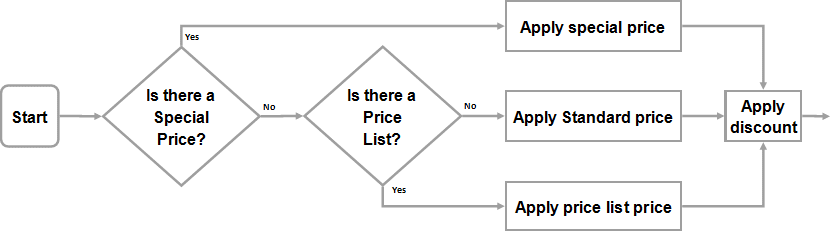
When there is a mixture of special prices, price lists and customer discounts, Sage Accounts applies them as follows:

Prices are applied as above, however, the invoice and order defaults determine how quantity and value discounts are applied to special prices and price lists.

1. Settings > Invoice & Order Defaults > Discounts.

2. Select from the following options:

Discount by Unit Price To calculate the discount for each item of an invoice or sales order from the unit price of the item select this check box. This calculates the discounted price as (unit sales price – discount) x quantity.

To calculate the discount from the total of each item, clear this check box. This calculates the discounted price as (unit sales price x quantity) – discount.

Special Prices To give quantity and value discounts to those customers who have a special price for the product, select this check box.
Price List Prices To give quantity and value discounts to those customers who have a price list price, select this check box.
Standard Prices The Standard Prices check box is selected by default and can’t be amended.
All Customers To apply quantity and value discounts as set up in the customer record, taking into account the options checked for special prices and price lists, select this option.
Only Customers who are not associated with a Price List To apply value discounts when the customer is not attached to a price list and quantity discounts to standard prices when the customer is not attached to a price list, select this option.

If this option is selected you cannot select the Price List Prices check box.

Always apply Value Discounts to special items (S1,S2 and S3) To apply value discounts to S1, S2, or S3 items, select this check box.
Show Discount on Main Invoice/Order Screen To show the discount column on your invoice or order screen, select this check box.


3. Click OK.

To create a price list

1. Customers > Price lists.

2. New > complete the Price List Details as follows:

Name Enter the name of your price list.
Description Enter the description of your price list.
Currency If required, from the drop-down list, choose the required currency.

Note: Customers can only be associated with a price list if they use the same currency as the price list.


3. Save > Close.

To add products to a price list

1. Customers > Price lists.

2. Select the price list you want to add products to > Edit.

3. The following headings appear in the Products window:

Note: Sage Accounts V21 – The Products window is called Associated Products.

Product Code The product code for any products added to the price list.
Description The product description for any products added to the price list.
Calculation Method The calculation method chosen when adding the product to the price list.
Sales Price The existing sales price of the product, taken from the product record.
Cost Price The existing cost price of the product, taken from the product record.
List Price This is the calculated price for this price list, this is calculated using the calculation method.
Profit Margin% This is the difference between the cost price and the list price expressed as a percentage. For example, if the cost price is 2.5 and the sale price is 5.0 the profit margin%= 50%.


4. To add a product > Add.

5. Select the products you want to add.

6. For the selected products, choose the pricing method that will be used to calculate the price list price.

Tip: You can use Preview to check the list prices. Once added the calculation and rounding method can be amended for individual products. For further information about calculation methods, please refer to the Calculation methods section.

7. To return to the Edit Price List window > OK.

8. Save > Close.

Calculation Method
Calculation Method Value
Fixed Price Enter a fixed price. This price doesn’t change if the sales or cost price on the product record changes.
Standard Sales Price The value box is not available as this option uses the sales price in the product record.
Decrease Sales Price by % This option decreases the sales price in the product record by a percentage. Enter the required percentage.
Decrease Sales Price by Value This option decreases the sales price in the product record by a fixed amount. Enter the required amount.
Markup % on Cost Price This option calculates the selling price by increasing the cost price in the product record by a percentage. Enter the required percentage.
Markup Value on Cost Price This option calculates the selling price by adding a fixed amount to the cost price in the product record. Enter the required amount.
Increase Sales Price by % This option calculates the selling price by increasing the sales price in the product record by a percentage. Enter the required percentage.


Rounding Direction
Rounding Direction Round up to – This option will always round up.
Nearest – This option will round up if the last number is 5 or higher and round down if the last number is 4 or lower.
Round down to – This option will always round down.
To Select this to round to a specific number of decimal places. You can choose up to 6 decimal places.

Note: The number of decimal places depends on what is set in the Unit D.P. in Settings > Product Defaults.

Multiples of Select this to round to a multiple of a specific number. You can also add or deduct an adjustment.

For example, if you choose to round up to multiples of 1.00 with an adjustment of -0.01 and your calculated price is 10.2345, the list price will be 10.99. This is because 10.2345 rounds up to 11.00 and the adjustment of -0.01 is then applied.


Recalculate prices

When the sales price or cost price within the product record changes or when the exchange rate changes you may want to update your price list prices. The following options are available in Price Lists > Recalculate Prices Details:

Recalculate Price List prices whenever Product prices change Select this option if you want the prices on the price list to change automatically.

Note: This doesn’t affect the fixed price calculation method.

Only recalculate Price List Prices on selection of the Recalculate Prices button Select this option if you want the prices to change only when you click Recalculate Prices.


To add customers to a price list

Tip: To check which price list a customer belongs to, select the required customer > New/edit > Defaults tab. The Price List box displays the price list the customer is associated with.

1. Customers > Price lists.

2. Select the price list you want to amend > Edit.

3. Customers window > Add > select the required customers > OK.

Sage Accounts v21 – Customers tab > Add > select the required customers > OK.

Tip: To add multiple records, hold down the Ctrl Key to select specific records. Hold down the Shift Key to select a range. For example, holding down the Shift key and clicking on the first record and then the last will select all records in that range.

Note: A customer may only belong to one price list. If a customer’s already a member of a price list, a confirmation window appears prompting you to move them to the current price list.

4. Save > Close.

To edit the prices on a price list

1. Customers > Price lists.

2. Select the price list you want to amend > Edit.

3. Select the product you want to amend > Edit Price.

4. Amend the List Price Calculation as required.

5. Save > Close > Close.

To import price lists

Note: The calculation method for the imported price list is automatically set to Fixed. If the product already appears on the price list the price is overwritten.

File format

The file must be CSV or TXT and in the following format:

  • Product reference – This must already exist in your product list.
  • Product price – Enter the new fixed price for the product.

For example:

“Product ref”,”Price”

“Board001″,”20.00”

“Box002″,”22.00″,”with waterproof coating”

“Book001″,”7.99″,”Signed limited edition”

In this example, Sage Accounts doesn’t import the column headings on the first line or the additional text on lines 3 and 4.

Tip: When using the Import option within Sage Accounts, any numeric values do not need to be in quotes. In the above example, this means that the prices do not need to be in quotes.

Import

Note: Before completing this procedure you must create the customer price list. For further information about this, please refer to the section To create a price list. We also recommend that you take at least one backup of your Sage Accounts data. 

1. Customers > Price lists.

2. Select the price list that you want to import into > Edit.

3. Import > Browse to the file that you want to import > Continue.

Note: You can import either .TXT or .CSV files.

4. Complete the Confirm Customer Price List Import window as follows:

  • To remove a line from the import, select the relevant line > Delete Line.
  • To change the new price for the product on the price list > enter the required price into the Proposed Price box.
  • To clear the price list before importing the new details > select the Remove all items from the Price List prior to importing check box.
  • To hide any import warnings in the Warnings column > select the Hide warnings, errors will still be displayed check box.

Note: For further information about the errors and warnings, please refer to the following section Error and warning messages section below.

  • The Save, and Save as, options save any changes that you make in this window back to the import file or to a new file prior to the import.

5. To import the file > Apply.

6. To save the price list and return to the Price Lists window > Save > Close.

Error and warning messages

Errors appear on the Confirm Customer Price List Import window in red and are not imported into the price list. To import the information, you must take the required action to change the error to a warning or remove the error. The following errors may appear:

Error Action
Product code not recognised. Correct the product code on the import file or create the product code in the product list.
There are two list prices being imported for this product. See line (number). The product code is on the price list you are importing twice, remove one of the lines.
Invalid price supplied for this product. Correct the price of the product on the import file.

Warnings appear on the Confirm Customer Price List Import window in black and are still imported into the price list. The following warning message may appear:

Product Code exists and the current price list of (value) will be overwritten.

To set up special prices

1. Products and services > select the product you want to apply the special price to > Edit.

2. Pricing Structure > Add > Special Customer Price.

3. A/C Reference drop-down list > choose the required customer > OK.

4. Calculation Method drop-down list > choose the calculation method to be applied.

Note: For further information about the calculation methods, please refer to the section Calculation methods.

5. Value box > enter the value or percentage to be used in the selected calculation method.

6. If a percentage calculation method is to be used > Rounding Direction drop-down list > choose the required method.

7. If a percentage calculation method is to be used, to specify the number of decimal places > choose from either the Decimal Places drop-down list, or Multiples of.

Note: For further information about these options, please refer to the Calculation methods section.

8. To save the special price and return to the Pricing Structure window > Save > Close.

9. To return to the Products window > OK > Close.

Note: If you need to delete a special customer price, it must be deleted from the Pricing Structure tab in each individual product record.

To copy a price list

1. Products and services > Price lists.

2. Select the price list you want to copy > Copy.

3. Enter the required name and description then, to save the price list and return to the Price List window > Save > Close.

To delete a price list

1. Customers > Price lists.

2. Select the customer price list you want to delete > Delete > Yes.

Pimbrook Software
Privacy Overview

This website uses cookies so that we can provide you with the best user experience possible. Cookie information is stored in your browser and performs functions such as recognising you when you return to our website and helping our team to understand which sections of the website you find most interesting and useful.